Or how to fix a bOrked Microsuck
ACHTUNG!
ALLES TURISTEN UND NONTEKNISCHEN LOOKENPEEPERS!
DAS KOMPUTERMASCHINE IST NICHT FÜR DER GEFINGERPOKEN UND MITTENGRABEN! ODERWISE IST EASY TO SCHNAPPEN DER SPRINGENWERK, BLOWENFUSEN UND POPPENCORKEN MIT SPITZENSPARKSEN.
IST NICHT FÜR GEWERKEN BEI DUMMKOPFEN. DER RUBBERNECKEN SIGHTSEEREN KEEPEN DAS COTTONPICKEN HÄNDER IN DAS POCKETS MUSS.
ZO RELAXEN UND WATSCHEN DER BLINKENLIGHTEN.
About System Restore:
System Restore is available in Windows XP and Vista (which sucks btw, stay away from it at all costs. Seriously. I'm not kidding. It's a resource hog and it makes the average PC run slower than snail snot. And that's really slooooooow.)
System Restore in
Windows XP will automatically create a backup of the system files and settings whenever a new device, driver, update, or application is installed. That means that when you hit the 'install' button the first thing XP does it take a backup snapshot of the system--and then it begins the installation process.
If there is a problem after you install a new device or application, or uninstall an old one, you can go back to a former
Restore Point, a date when the system was stable, and that will usually fix the problem.
The things that will
not be changed by reverting back to a former restore point are: The files in My Documents, Internet favorites, email settings, pictures, music, etc. Basically, it is safe to use without fear of losing your data and personal information.
System Restore is automatically activated as soon as you load XP, so, unless you have disabled it or changed the settings manually, it should be making a new restore point every day.
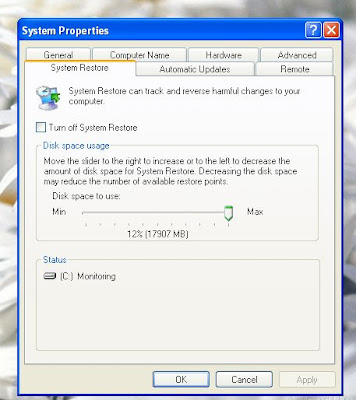
To check and see if System Restore is enabled or to adjust how much space you have allotted for it (the more space, the more restores you have to choose from - 200 MB minimum)
Right click My Computer. Go to Properties. Click the System Restore tab. There is no option to restore or create a retore point here. It will simply tell you whether it is enabled/disabled, let you change how much space it is allotted and it should say that it is 'monitoring'.
**
System Restore requires a minimum of 200 MB of free hard disc space or it will disable itself until the space is available. It will use this space until it's full and then, when it is full, it will re-write over the oldest data.
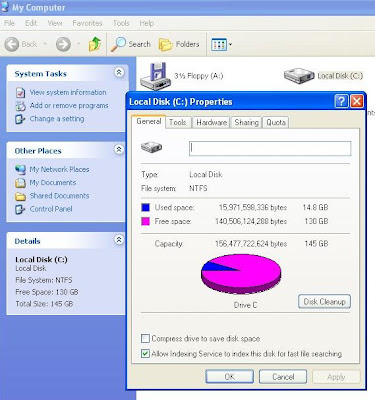
To check the amount of free space on your hard drive Right Click on My Computer, Click on Properties. The General tab will show you how much disc space you have and how much of it is free, it will also display this information as a pie graph.
**
System Restore cannot recover personal files or email messages, etc. It will only effect system files and settings.
Before you try System Restore:
Try these troubleshooting tips.
It is recommended that you try to re-boot the computer before you use system restore. Many times the system will correct itself after a new installation or uninstall just by re-starting.
If you're having trouble restarting you should try booting in safe mode. Turn off the computer. Count to ten. Turn it back on. Hit the
F8 button continuously as the computer starts but before Windows launches. Scroll to highlight
Last Known Good Configuration and then hit enter.
If Windows launches before you are in safe mode you'll have restart your computer and try again. It's a pain in the ass the first time you try. Most people don't make it into safe mode the first time. No need to be embarrassed. I failed my first 3 times. Now that's embarrassing.
How to Use System Restore:
Go to Start
Programs
Accessories
System Tools
System Restore
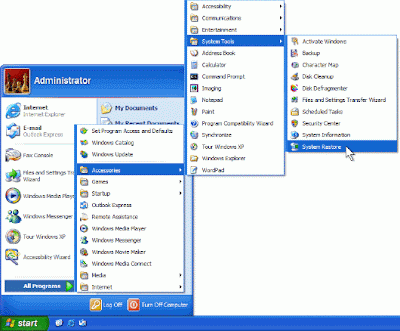
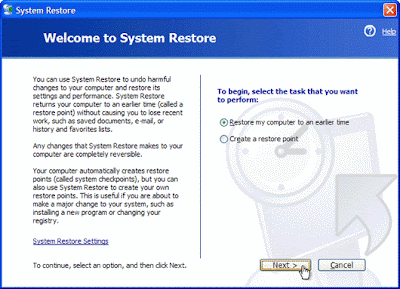
The System Restore dialogue box will open.
(This is the same box you will use if you ever want to manually create a restore point)
Click on the 'Restore my computer to an earlier time' radio button.
A dialogue box with a calendar will open. You can use the arrows to see the restore points for different months.
Choose one of the dates that are in bold. (Bold means these are dates that have a restore point)
Click 'next'
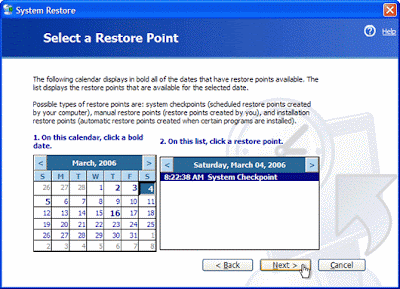
You'll then be asked to Confirm Restoration Point Selection.
Make sure that this is the date that you selected and then click next.
Windows will then automatically shut down and restart the computer.
When the computer restarts you will see a dialogue box that says Restoration Complete.
Click 'Okay'.
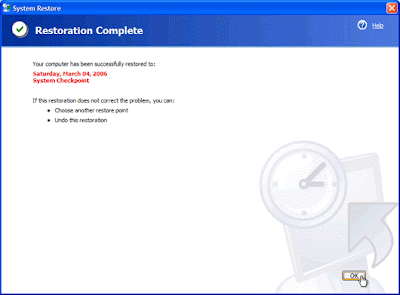
Test the computer to make sure that the problem was resolved.
If the problem was
not solved you should immediately undo the restore. (I mean it - right now! Undo the restore if it didn't work.)
How to undo a System Restore:
Follow the same steps as above but when you get to the System Restore dialogue box there will now be an option to 'Undo my last restoration'.
Click that option then next.
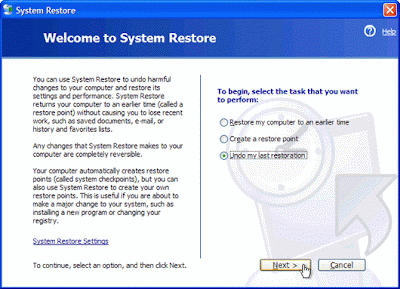
Click next in the Confirm Restoration Undo dialogue box.
Windows will automatically shut down and restart again.
When it restarts you will see a dialogue box that says Undo Complete.
Click Okay.
*If you aren't sure about the date that you started having problems you may want to try to restore from several points to see if you can find a good restore point.
For example, if you recently uninstalled a program and now you're having problems you might want to use a restore point before the program was installed to see if that will solve the problem.
Just remember to 'Undo Restoration' after each restoration that was not successful, and before you attempt another restoration point.
**As I said previously, System Restore
Cannot recover personal files or email messages.
The best way to insure against this type of data loss is to do backups on a regular basis. Unfortunately you can't backup XP to a CD-RW using the backup utilty. I do have some other useful suggestions to get around that. I'll cover those soon ;)
Next up for the geeks,
How to use System File Checker - SFC to repair Windows XP and 2000.
This post was written for
SeaRabbit, because her machine has gone wonky and I don't want her to miss HNT. It's always something to look forward to ;) Sorry I was so late getting this up, I actually wrote it last week, but came down with Strep over the weekend so I have barely lifted my head out from under the covers for a few days.


